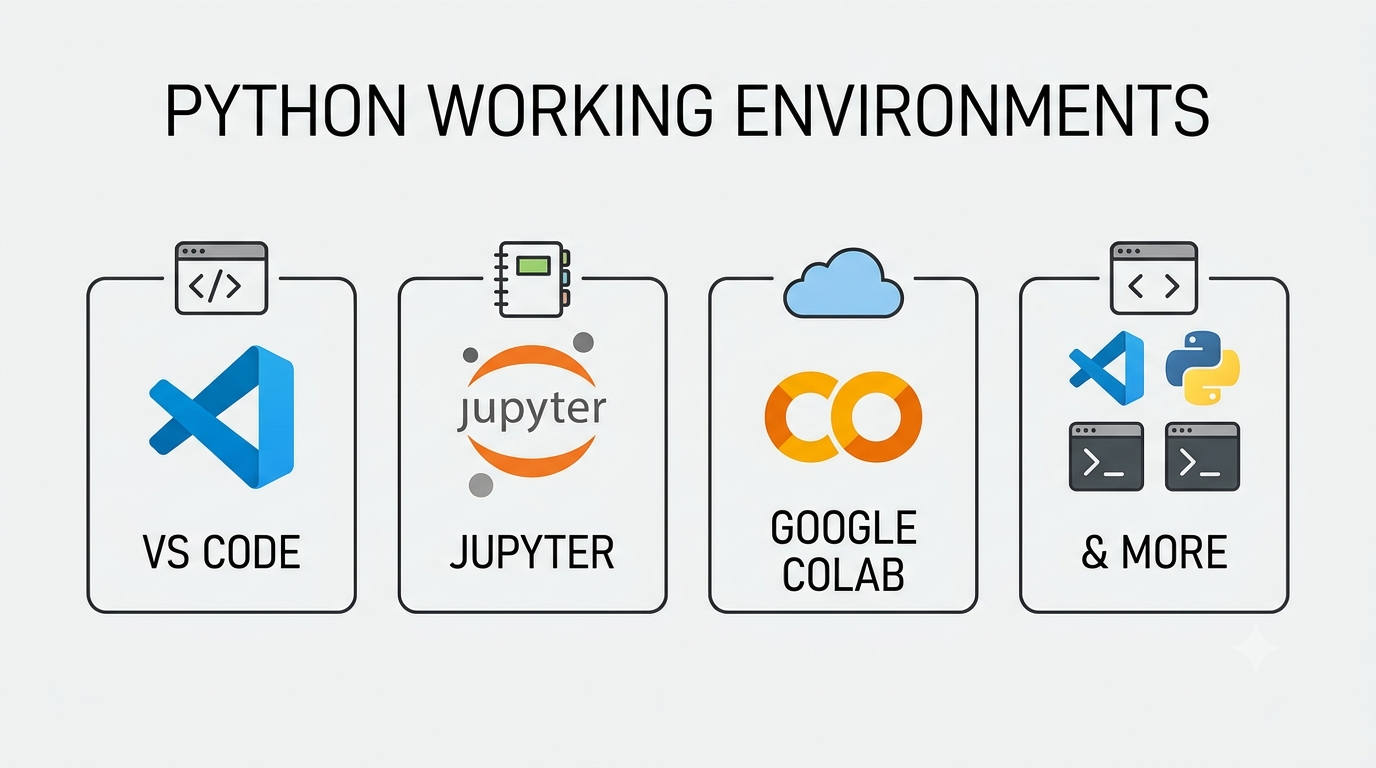
Python Working Environments: VS Code, Jupyter, Google Colab & More
Python is a programming language. But writing Python requires a working environment—the place where code is written, executed, tested, debugged, and organized.
Should Python code be written in VS Code? Is Jupyter Notebook better? What exactly is Google Colab? Is an IDE different from a code editor? And when is simply using the terminal enough?
The answer is that these environments are designed around different ways of working.
Some are excellent for building software. Others are designed around experimentation, data analysis, teaching, or sharing computational work. Understanding those differences makes it much easier to choose the right environment for a particular Python task.
What is a Python working environment?
A Python working environment is the combination of tools used to create and run Python programs.
At the simplest level:
Python interpreter
+
Text editor
+
Terminal
A more complete development setup might include:
Python interpreter
+
Code editor / IDE
+
Virtual environment
+
Package manager
+
Debugger
+
Version control
+
Testing tools
Notebook-based workflows are different:
Python kernel
+
Notebook interface
+
Code cells
+
Markdown
+
Output / visualizations
And a cloud environment such as Google Colab adds another layer:
Browser
+
Hosted Python environment
+
Notebook interface
+
Cloud computing resources
So when people say they are "working in Python," they may actually be using very different environments.
1. VS Code
Visual Studio Code, commonly called VS Code, is a general-purpose code editor that can be extended into a powerful Python development environment.
It is particularly useful when Python is being used to build applications, scripts, services, automation tools, or larger software projects.
A typical Python project might look like:
my_project/
│
├── .venv/
├── src/
│   ├── main.py
│   ├── helpers.py
│   └── data.py
│
├── tests/
│   └── test_main.py
│
├── requirements.txt
└── README.md
The important idea is that VS Code works well with the whole project, rather than only with individual pieces of code.
Why VS Code is popular for Python
VS Code can provide:
- Syntax highlighting
- Code completion
- Error detection
- Integrated terminal
- Debugging
- Source control integration
- Extensions
- Project navigation
- Testing support
- Notebook support
Python-specific functionality can be added through extensions, allowing VS Code to behave much more like a dedicated Python IDE.
Running Python in VS Code
A simple Python file might contain:
name = "KnowledgeBoost"

print(f"Hello from {name}!")
The file can be saved as:
hello.py
and executed through the integrated terminal:
python hello.py
The same project can then grow into dozens or hundreds of files without changing the basic working environment.
VS Code and debugging
One of VS Code's biggest advantages is debugging.
Instead of relying only on:
print(variable)
a debugger can pause execution at a specific line and inspect the program's state.
This becomes particularly valuable as programs become larger and more complicated.
When VS Code makes sense
VS Code is a strong choice when the goal is to:
- Build Python applications
- Create automation scripts
- Work with multiple Python files
- Develop APIs
- Build software projects
- Use Git
- Write and run tests
- Debug code
- Work with different programming languages in the same project
For general software development, VS Code is one of the most flexible choices.
2. Jupyter Notebook
Jupyter Notebook takes a different approach.
Instead of primarily thinking in terms of Python files, Jupyter encourages working with cells.
A notebook can contain:
- Python code
- Text
- Formulas
- Tables
- Charts
- Images
- Output from calculations
For example:
numbers = [10, 20, 30, 40, 50]

sum(numbers)
The output can appear directly below the cell.
Another cell can immediately use the result:
average = sum(numbers) / len(numbers)

average
This creates an interactive workflow where code and its results stay together.
Why notebooks are useful
Imagine exploring a dataset.
A traditional Python script might involve:
write code
↓
run program
↓
inspect output
↓
change code
↓
run again
A notebook makes this process more interactive:
Code cell
↓
Result
↓
Explanation
↓
Another code cell
↓
Visualization
↓
Observation
That makes notebooks especially useful for exploration and analysis.
Jupyter and data visualization
A notebook can combine calculations with visual output:
import matplotlib.pyplot as plt

months = ["Jan", "Feb", "Mar", "Apr"]
sales = [120, 150, 180, 210]

plt.plot(months, sales)
plt.title("Monthly Sales")
plt.show()
The chart can appear directly inside the notebook.
This is one reason Jupyter became particularly popular in:
- Data science
- Statistics
- Machine learning
- Scientific computing
- Education
- Research
Jupyter Notebook vs JupyterLab
Jupyter Notebook is the familiar notebook interface.
JupyterLab provides a more complete workspace around notebooks, including multiple documents, terminals, file browsing, and other tools.
The underlying notebook concept remains the same: computational work is organized into interactive cells.
The important Jupyter concept: the kernel
A Jupyter notebook uses a kernel to execute code.
The execution state can continue between cells:
x = 100
followed later by:
x + 50
works because the Python kernel still has x in its current state.
This is convenient—but it can also create confusion. A notebook may appear to work because cells were executed in an unusual order.
For reproducible work, understanding the execution state of the kernel is essential.
3. Google Colab
Google Colab, short for Google Colaboratory, brings the notebook experience into the browser.
The basic idea is simple:
Write and execute Python without having to build the entire local environment first.
A Colab notebook can be opened in a browser and used as an interactive Python workspace.
Why Colab is attractive
Colab is particularly convenient when:
- Python does not need to be installed locally
- Work needs to be shared
- A notebook needs to be accessed from different computers
- Experiments need hosted computing resources
- A data science or machine learning workflow is being explored
A typical workflow looks like:
Open browser
↓
Open notebook
↓
Write Python
↓
Run cells
↓
Inspect results
↓
Save/share notebook
Colab and hardware
Depending on the available runtime and account configuration, Colab can provide hosted computing resources that may be useful for computationally intensive workloads.
This can be particularly useful when experimenting with machine learning.
Cloud environments should not automatically be treated as permanent production infrastructure. Runtime availability, limits, storage behavior, and session characteristics can differ from a local development environment.
Colab and collaboration
A notebook can be shared much like other cloud-based documents.
This makes Colab useful for:
- Teaching
- Demonstrations
- Tutorials
- Experiments
- Research collaboration
- Sharing reproducible examples
For someone who wants to follow a Python tutorial without spending time configuring a local environment, Colab can be an excellent starting point.
4. PyCharm
PyCharm is a dedicated Python IDE.
Unlike a lightweight code editor, an IDE is designed to provide a broader set of programming tools in one application.
PyCharm can provide functionality such as:
- Code navigation
- Intelligent completion
- Refactoring
- Debugging
- Testing
- Project management
- Environment management
- Version control integration
This can be particularly useful when working on substantial Python projects.
VS Code vs PyCharm
Both can be excellent Python development environments.
| Feature | VS Code | PyCharm | |---|---|---| | General-purpose editor | Excellent | More Python-focused | | Python development | Excellent | Excellent | | Extensions | Extensive | Extensive | | Debugging | Yes | Yes | | Git integration | Yes | Yes | | Project tooling | Strong | Strong | | Multiple languages | Excellent | More specialized | | Learning curve | Flexible | More structured |
A developer who already uses VS Code for multiple languages may prefer VS Code.
Someone looking for a more Python-centered IDE may prefer PyCharm.
Neither is universally "better."
5. Python IDLE
Python also comes with IDLE, the Integrated Development and Learning Environment.
IDLE is much simpler than environments such as VS Code or PyCharm.
That simplicity can be useful.
A beginner can open IDLE, enter:
print("Hello, Python!")
and immediately see the result.
IDLE provides both:
- An interactive Python shell
- A basic code editor
It does not attempt to be a complete modern software-development workspace.
That is precisely why it can still be useful for learning the fundamentals.
6. The Python Terminal
Another environment that is often overlooked is the terminal.
Python can be run directly from a command line:
python
This can start an interactive Python session:
>>> 2 + 3
5

>>> name = "Python"
>>> print(name)
Python
A script can also be executed directly:
python program.py
This approach is extremely important because many other Python environments ultimately rely on the same underlying Python interpreter.
The terminal is especially useful for:
- Running scripts
- Installing packages
- Managing environments
- Running tests
- Starting development servers
- Automating tasks
- Working on remote machines
A developer who understands the terminal has a much better understanding of what is happening underneath graphical tools.
7. Python working environments vs virtual environments
One common source of confusion is mixing up a working environment with a Python virtual environment.
For example:
VS Code
    ↓
Python interpreter
    ↓
Virtual environment
    ↓
Installed packages
VS Code is the workspace.
Python is the interpreter.
A virtual environment isolates a project's Python packages.
These are different layers.
Virtual environments
Suppose one project requires one version of a package while another project requires a different version.
Installing everything globally can create conflicts.
A virtual environment provides an isolated environment for a project.
A common command is:
python -m venv .venv
The project can then use that environment for its Python interpreter and installed packages.
This concept is important regardless of whether the code is eventually edited in VS Code, another IDE, or a terminal.
8. Local vs browser-based environments
One useful way to understand the choices is to divide them into two broad groups.
Local environments
Examples include:
- VS Code
- PyCharm
- IDLE
- Terminal
- Local Jupyter
The software runs on the local computer.
Advantages can include:
- More control
- Local files and tools
- Persistent development environments
- Easier integration with local projects
- Greater control over dependencies
The trade-off is that the environment needs to be installed and maintained.
Browser-based environments
Examples include:
- Google Colab
- Hosted Jupyter environments
- Other cloud development platforms
The browser becomes the main interface.
Advantages can include:
- Little local setup
- Easy sharing
- Access from different machines
- Hosted computational resources
The trade-off is greater dependence on the hosted service and its runtime rules.
9. Notebook vs Python script
This is one of the most important choices for beginners.
A notebook might contain:
Cell 1
↓
Import libraries

Cell 2
↓
Load data

Cell 3
↓
Explore data

Cell 4
↓
Create chart

Cell 5
↓
Draw conclusion
A Python project may instead contain:
main.py
data.py
analysis.py
visualization.py
tests/
Neither approach is automatically better.
They serve different purposes.
Notebooks are particularly useful for
- Exploration
- Data analysis
- Visualization
- Teaching
- Experiments
- Research
Scripts and projects are particularly useful for
- Applications
- Automation
- APIs
- Reusable software
- Testing
- Production systems
- Larger codebases
In real-world work, the two approaches can also be combined.
A data scientist may explore an idea in a notebook and later move reusable logic into Python modules.
10. Which Python environment should be used?
There is no single correct answer.
| Goal | Good starting environment | |---|---| | Learning basic Python | IDLE, VS Code, or Jupyter | | Writing normal Python programs | VS Code or PyCharm | | Building larger applications | VS Code or PyCharm | | Exploring datasets | Jupyter | | Creating visualizations | Jupyter | | Machine learning experiments | Jupyter or Google Colab | | Sharing an interactive experiment | Google Colab | | Running scripts | Terminal or VS Code | | Remote/server work | Terminal or VS Code | | Teaching with executable examples | Jupyter or Google Colab |
The choice becomes much easier once the purpose of the work is clear.
11. A practical learning path
For someone learning Python from scratch, switching between many environments at once can create unnecessary confusion.
A simple progression is often more useful.
Stage 1 — Learn the language
Start with a simple environment such as VS Code, IDLE, or an interactive Python shell.
Focus on:
variables
↓
conditions
↓
loops
↓
functions
↓
data structures
↓
modules
Stage 2 — Learn interactive exploration
Introduce Jupyter.
Experiment with:
import statistics

values = [10, 20, 30, 40, 50]

statistics.mean(values)
The immediate output makes experimentation easy.
Stage 3 — Learn project development
Move toward a structured project:
project/
├── .venv/
├── src/
├── tests/
├── requirements.txt
└── README.md
Use VS Code or PyCharm and learn how files, modules, packages, environments, and tests fit together.
Stage 4 — Explore cloud notebooks
Once notebooks make sense, Google Colab becomes easier to understand.
At that point, Colab is not a mysterious alternative to Python. It is another way of providing an interactive Python working environment.
12. The bigger picture
The important lesson is that Python is independent of the editor or interface used to write it.
The same Python language can be used through:
Terminal
     │
     ├── Python scripts
     │
     ├── VS Code
     │
     ├── PyCharm
     │
     ├── Jupyter
     │
     └── Google Colab
The syntax remains Python.
What changes is the working experience around the language.
A beginner experimenting with a few lines of code has different needs from a developer building a large application. A researcher exploring data has different needs from someone training a machine-learning model in the cloud.
That is why there are so many Python environments.
Final takeaway
There is no need to search for the one "best" Python environment.
Instead, ask:
What kind of work is being done?
For general software development, VS Code or PyCharm can provide a strong project-based workflow.
For interactive analysis and experimentation, Jupyter is particularly powerful.
For browser-based notebooks and easy sharing, Google Colab is convenient.
For simple learning and quick experiments, IDLE or the Python terminal can be enough.
As Python skills grow, moving between these environments becomes much less confusing because the underlying concepts remain the same.
The environment is the workspace.
Python is the language.